





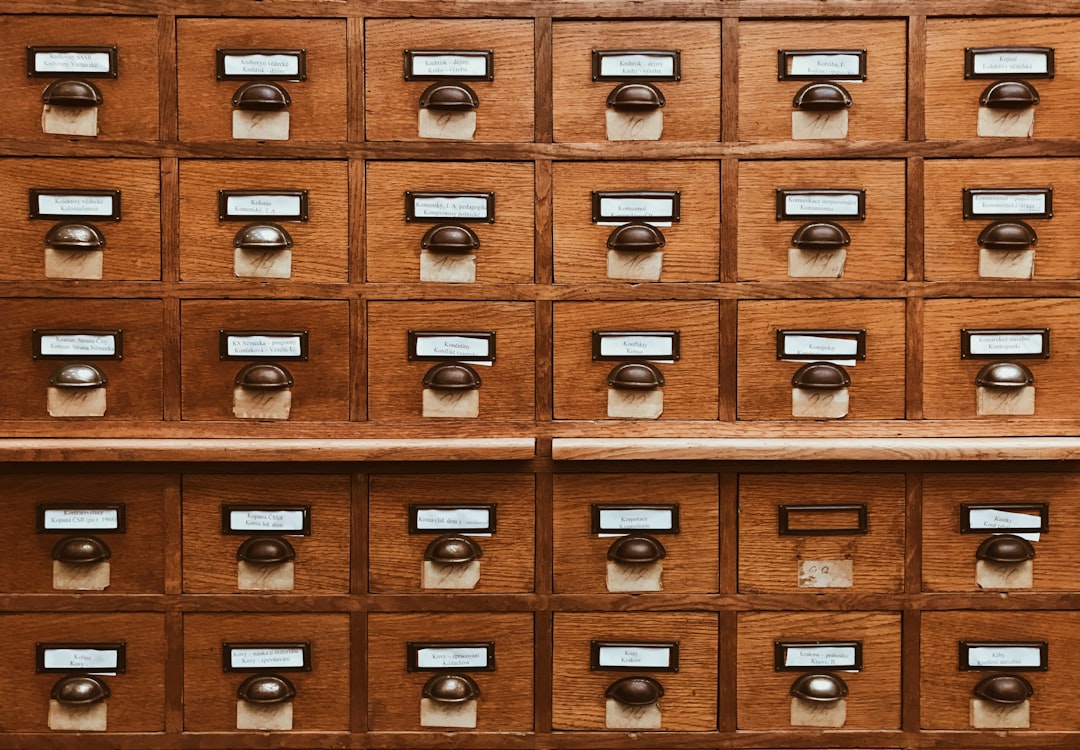
Raise your hand if this sounds familiar: You download a file, name it something vague like “Document1,” and promise yourself you’ll organize it later. Fast-forward six months, and your desktop looks like a digital landfill. You spend 15 minutes hunting for that one spreadsheet, only to find it buried in a folder named “Miscellaneous.”
Digital clutter isn’t just annoying—it wastes time. A McKinsey study found knowledge workers spend nearly 20% of their week searching for internal information. But organizing files doesn’t have to mean color-coded folders or complex systems. Here’s how to create a method that actually sticks.
Start With a “Big Sort” (But Keep It Simple)

Facing years of disorganized files is overwhelming. Instead of trying to fix everything at once, do a quick triage:
- Create three temporary folders: “Keep,” “Archive,” and “Trash.”
- Sort files into them based on immediate usefulness. Be ruthless—if you haven’t opened a file in a year, it probably belongs in Archive or Trash.
- Delete the Trash folder immediately (empty the recycle bin too).
“Think of your digital files like a closet. You wouldn’t keep expired coupons or outgrown shoes—so why keep outdated drafts or duplicate photos?”
— Lisa, a professional organizer who helps small businesses declutter
Choose a Folder Structure That Matches Your Brain

There’s no single “right” way to organize files. The best system is the one you’ll naturally use. Here are three approaches real people swear by:
Method | Best For | Example |
|---|---|---|
| Project-Based | Freelancers, consultants | Folders like “ClientX_WebsiteRedesign” with subfolders for “Contracts,” “Mockups,” “Feedback” |
| Category-Based | Students, researchers | Main folders like “Academics,” “Personal,” “Work,” then subfolders by topic or class |
| Time-Based | Parents, event planners | Folders by year/month (e.g., “2023 > 06_June > Vacation_Photos”) |
Naming Files Like a Pro
Ever searched for “invoice” and gotten 27 results? File names should be specific enough to stand alone. Try this formula:
[Description]_[Date or Version]_[Your Initials].ext
For example:
Invoice.pdf→ ClientX_Invoice_2023-07-15_JT.pdfMeetingNotes.docx→ ProjectKickoff_Notes_v2_AS.docx
Bonus Tip: Use Dates Wisely
Always format dates as YYYY-MM-DD (e.g., 2023-07-15). This keeps files in chronological order when sorted alphabetically—critical for things like expense reports or weekly updates.
Maintenance: The Secret to Long-Term Success
A filing system only works if you maintain it. Here’s how to avoid backsliding:
- Schedule a monthly “clean-up” (10 minutes max). Delete duplicates, empty downloads, and archive old projects.
- Use cloud storage smartly. Services like Dropbox or Google Drive can auto-sort photos/docs by date—but rename files afterward for clarity.
- Teach others. If you share files with a team or family, agree on naming conventions. Nothing derails organization faster than someone uploading “Final_Final_Version.pptx.”
When to Break Your Own Rules
Strict systems fail because life isn’t perfect. A busy parent might need a “Quick Access” folder for school forms and medical records. A creative professional might keep a “Brain Dump” folder for half-baked ideas. That’s okay.
The goal isn’t perfection—it’s reducing the time you spend searching so you can focus on what matters. As one reformed digital packrat told me:
“I used to waste hours hunting for files. Now, if I can’t find something in 30 seconds, I know my system needs tweaking.”
Tools That Help (Without Overcomplicating Things)
While you can organize files with built-in folders, these tools add helpful features:
- Everything (Windows) or Spotlight (Mac): Instantly search file names across your entire computer.
- Hazel (Mac): Automatically moves files based on rules (e.g., “Put all PDFs downloaded from BankX into the Finance folder”).
- TagSpaces: Lets you tag files across folders for cross-category searching (great for research projects).
Remember: Tools should simplify, not add steps. If setting up a tool takes longer than the time it saves, skip it.
Your Turn: Start Small
Pick one area causing daily frustration—maybe your Downloads folder or client documents. Spend 20 minutes applying these tips, then notice how much easier it is to find things. Once that feels natural, tackle another spot.
Digital organization isn’t about rigid rules. It’s about creating a system that works for your brain and your workflow. Less chaos means more mental space for the things you actually want to do—whether that’s growing your business, finishing your degree, or just enjoying a clutter
Frequently Asked Questions
Begin with a quick triage: create three temporary folders labeled “Keep,” “Archive,” and “Trash.” Sort files based on immediate usefulness—if you haven’t opened something in a year, it likely belongs in Archive or Trash. Delete the Trash folder immediately to avoid second-guessing.
A project-based system works well—create folders like “ClientX_WebsiteRedesign” with subfolders for “Contracts,” “Mockups,” and “Feedback.” This keeps all related files together while maintaining clarity across different clients or initiatives.
Generic filenames cause this headache. Use a structured naming formula like [Description]_[Date]_[Initials]—for example, “ClientX_Invoice_2023-07-15_JT.pdf.” This makes files identifiable at a glance and keeps them sortable.
Schedule a 10-minute monthly cleanup to delete duplicates, archive old projects, and clear your downloads folder. Regular micro-maintenance prevents overwhelming pile-ups and keeps your system functional.
Only if they save more time than they consume. Tools like Hazel (Mac) or TagSpaces help when you frequently handle similar files, but avoid complex systems that add steps. The goal is simplification, not another chore.
Create a “Quick Access” or “Active Projects” folder for current priorities—it’s okay to bend your system for practicality. Just ensure these exceptions remain a small subset, not a dumping ground.